Hi! How Can We Help?
How to Delete a Meal Plan or Reset Your Meal Plan Preferences
Made a meal plan you don’t need any more, or want to start again with different settings? Here is how to delete a meal plan in WiseList, and how to reset your Meal Plan preferences to the defaults.
To open Meal Plan, open the WiseList app and tap “My Lists” in the bottom navigation bar, then tap “Meal Plan” under Kitchen. You can also tap “Plan” on the Grocery tab.
How to delete your current meal plan
- Open Meal Plan. Your current plan shows first.
- Scroll to the bottom of the plan, below the shopping list.
- Tap “Delete this plan”.
- Tap “Delete” to confirm, or “Keep it” if you change your mind.
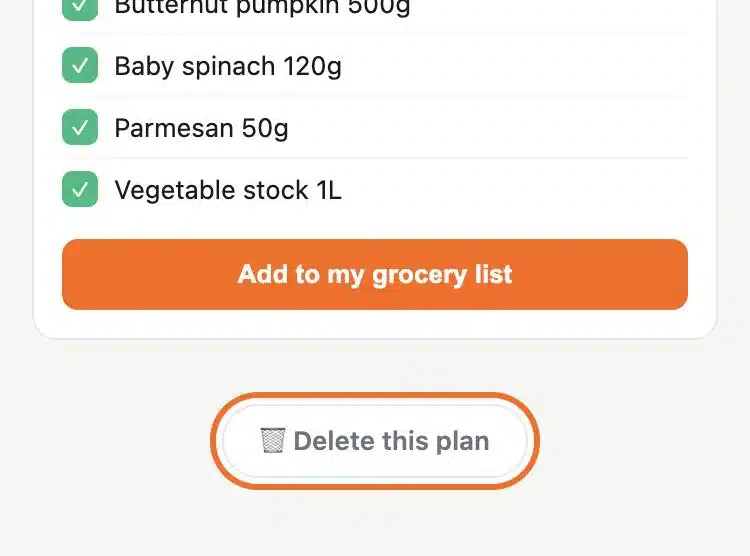
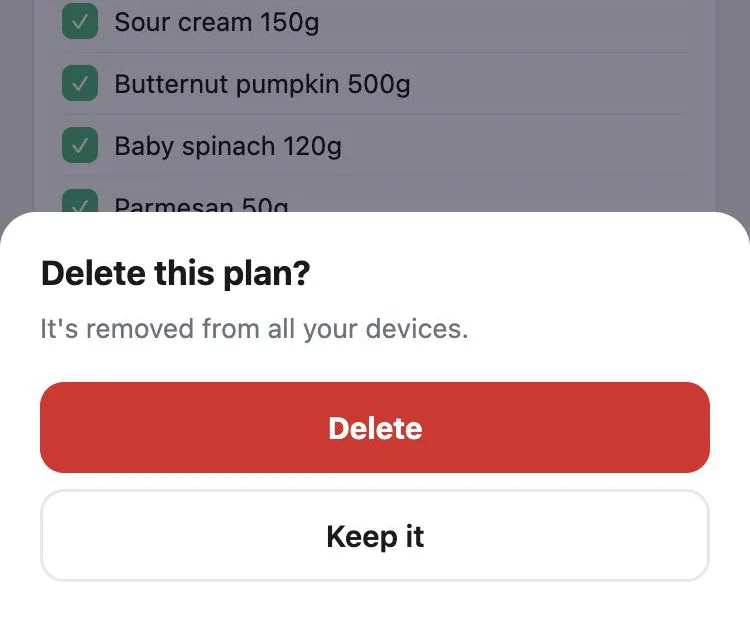
The plan is removed from all your devices, and you are taken to the screen where you can make a new one.
How to delete an older meal plan
- Open Meal Plan and tap “Start a new plan” at the top right. If you have no current plan, you are already on this screen.
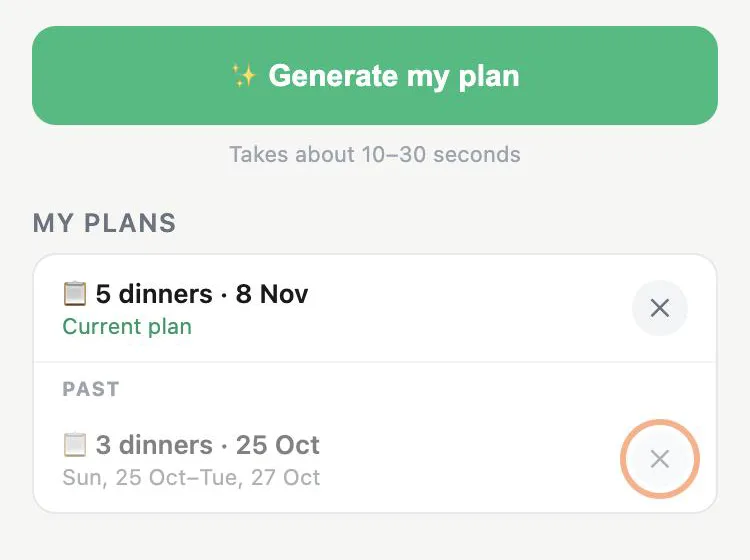
- Scroll to the bottom of the screen, to “My plans”. It lists your current plan and your past plans.
- Tap the round ✕ button on the right of the plan you want to remove.
- Tap “Delete” to confirm.
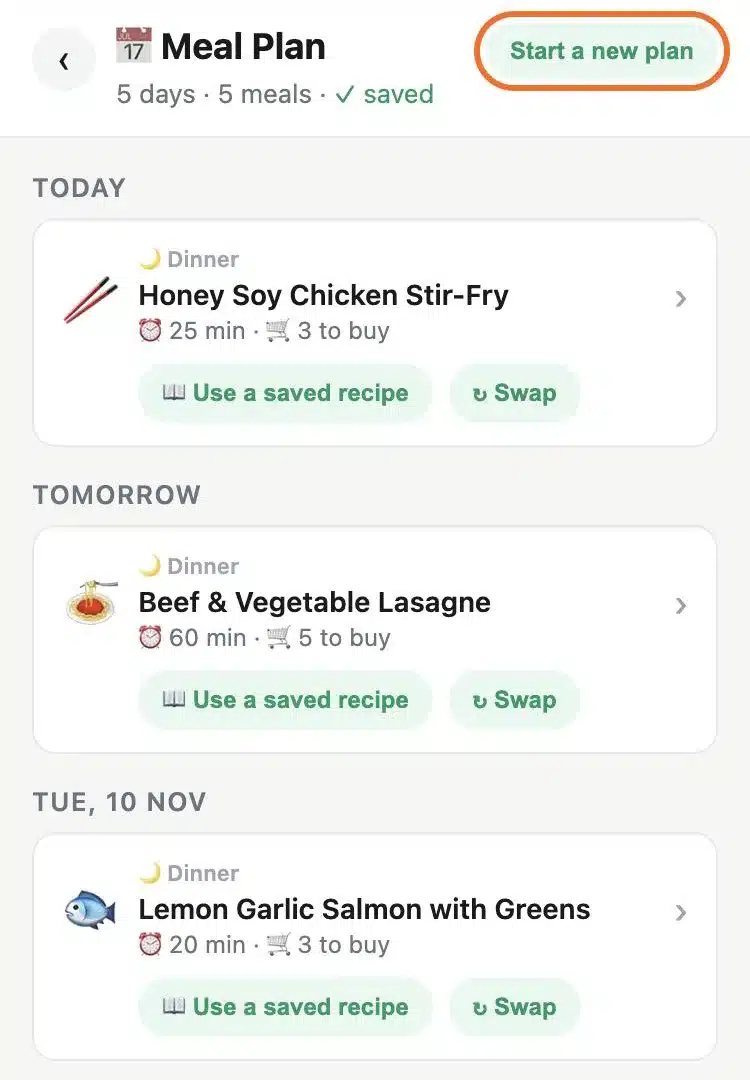
How to reset your Meal Plan preferences
Meal Plan remembers the settings from your last plan, so your next plan starts the way you like it. To clear them and start fresh:
- Open Meal Plan and tap “Start a new plan” at the top right. If you have no current plan, you are already on this screen.
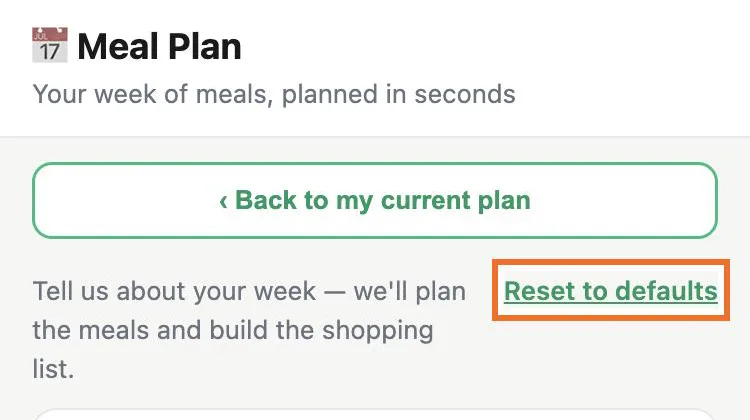
- Tap “Reset to defaults”, the green link on the right just below “Back to my current plan”.
- Choose your new settings, then scroll down and tap “Generate my plan”. Your new settings are kept from then on.
Resetting puts these back to how they are for a new user:
- Days: the next five days
- Meals: dinners
- People: two
- Diets, goals and foods to avoid: cleared
- Cuisine and weekly budget: cleared
- Meals picked from your saved recipes: cleared
Your “Cook from” choice (what’s in your kitchen, or this week’s specials) and the “Use up what I have” switch stay as they are, so change those yourself if you want to.
The reset is kept once you make a new plan. If you leave Meal Plan before tapping “Generate my plan”, your previous settings come back next time.
Frequently asked questions
Can I get a deleted meal plan back?
No. Deleting a plan can’t be undone, which is why WiseList asks you to confirm first. If you might want it later, keep it: once its days have passed, it moves under “Past” in “My plans”. “My plans” keeps your most recent plans, so very old ones drop off over time.
Does deleting a plan remove items from my grocery list?
No. Anything you already added to your grocery list stays there. Remove those items from your grocery list if you no longer need them.
Does “Reset to defaults” delete my plans?
No. It only clears the settings for your next plan. Your current and past plans stay in “My plans”. Opening an older plan from “My plans” also brings back the settings it was made with.
I don’t see “Reset to defaults”. Why?
It only shows when your settings differ from the defaults. If you can’t see it, your settings are already at the defaults.
I share meal plans with my household. What happens when I delete one?
If you delete a plan you shared, the people in your household won’t see it any more. You can only delete your own plans. A plan made by someone else in your household is marked “view only”, and only they can delete it.
I can’t find “Delete this plan” or “Reset to defaults”
Close the WiseList app fully (swipe it away from your recent apps, not just switch to another app) and open it again so the latest version of Meal Plan loads. If you still can’t see them, contact us through “Help & Support” in the app, or send us a message through “Feedback”.