Hi! How Can We Help?
How to Order for Click & Collect or Delivery
⚠️ Important: Who Delivers Your Groceries? WiseList is a smart list manager and price comparator, not a delivery service. When you choose delivery, WiseList simply transfers your cart to Coles or Woolworths. Your order is packed, charged, and delivered directly by Coles or Woolworths via their own drivers.
Part 1: Preparing Your Order
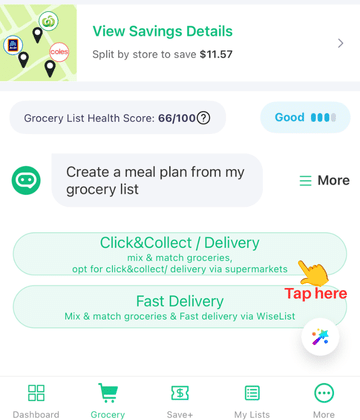
- Tap “Click & Collect/Delivery” at the bottom of your grocery list.
- Review the Mix and Match cost of your grocery and the cost for shopping only in each store.
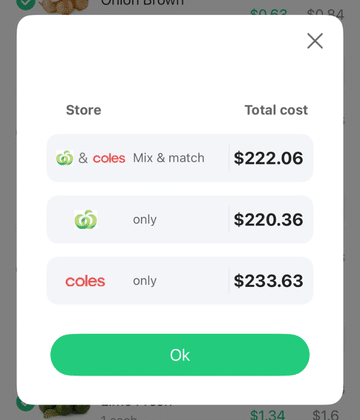
- Tap “OK” to proceed.
- Review your order items. You can untick items you do not need.
- Tap “Checkout through Coles & Woolies” at the bottom right of the screen to finalise your store selection and proceed to checkout.
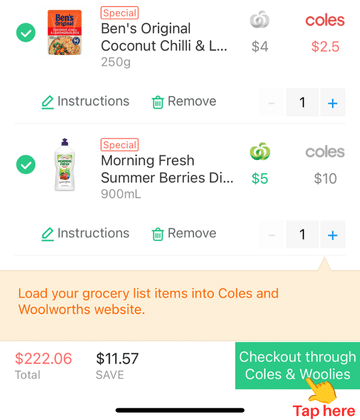
- Choose where you want to place your order: ‘Coles and Woolworths’, ‘Only Woolworths’, or ‘Only Coles’.

Part 2: Transferring to Woolworths
If you selected an option that includes Woolworths, follow these steps:
- Tap on the Woolworths tab.
- Log in to your Woolworths account.
- Once you are logged in, tap the yellow banner at the top of the screen that says: “Log in, then tap here to transfer your list items to your shopping cart.” highlighted in yellow at the top
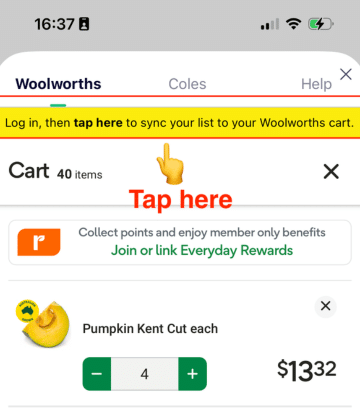
- Your grocery list items will automatically be loaded into your Woolworths shopping cart.
Part 3: Transferring to Coles
If you selected an option that includes Coles, follow these steps:
- Tap on the Coles tab.
- When prompted, allow WiseList to use your location. This helps us find the nearest Coles store for your specific Click & Collect or Delivery order.
- Log in to your Coles account.
- Your grocery list items will automatically be loaded into your Coles shopping cart.
Important Things to Know
- Delivery Fees: Even though you use WiseList to organise, you are still bound by the delivery fees and service charges of Coles or Woolworths.
- Substitutions: If an item is out of stock, the supermarket’s own substitution rules will apply (you can usually adjust these preferences during the final checkout on their site).
- Loyalty Points: Since you are logging into your actual Coles/Woolies account to pay, you will still earn your Flybuys or Everyday Rewards points as usual.